
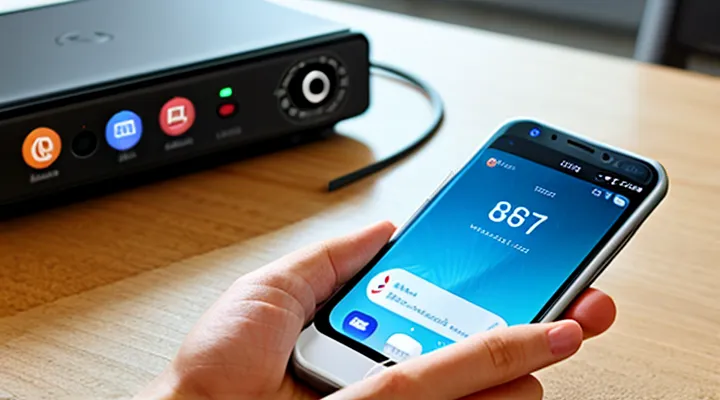
Understanding Ultrasonic Mouse Repellers
How Ultrasonic Repellers Work
The Science Behind the Sound Waves
Ultrasonic sound consists of acoustic frequencies above the upper limit of human hearing, typically 20 kHz and higher. Mice detect sounds up to roughly 90 kHz, making frequencies in the 30–70 kHz band effective for repellent applications. Generation of these waves relies on piezoelectric transducers that convert electrical signals into rapid diaphragm vibrations. When driven by a sinusoidal waveform at the desired frequency, the transducer emits a narrow‑band ultrasonic beam.
Smartphone audio hardware is designed for the audible range, yet modern devices can produce limited ultrasonic output through high‑frequency digital‑to‑analog conversion. Direct emission from the built‑in speaker yields weak intensity above 20 kHz, so most implementations attach an external ultrasonic module via the headphone jack, USB‑C, or Bluetooth. The module receives a PWM or FM‑modulated signal from the phone’s audio output and amplifies it to the required sound pressure level (typically 80–100 dB SPL at 1 m).
Key physical factors influencing efficacy:
- Frequency selection – aligns with mouse auditory sensitivity peaks (≈ 40–50 kHz).
- Amplitude – must exceed the threshold of hearing for rodents while remaining safe for human exposure.
- Beam pattern – directional transducers focus energy toward entry points, reducing dispersion and power consumption.
- Duty cycle – intermittent bursts (e.g., 1 s on, 3 s off) prevent habituation and conserve battery life.
Propagation of ultrasonic waves is subject to rapid attenuation in air, especially at higher frequencies. Attenuation follows the relation α ≈ 0.1 dB · f² · d, where f is frequency in kHz and d distance in meters. Consequently, effective coverage typically extends 1–2 m from the source, reinforcing the need for multiple emitters in larger spaces.
The biological mechanism relies on overstimulation of the mouse’s cochlear hair cells. Continuous exposure to intense ultrasonic pressure induces auditory fatigue, leading to avoidance behavior. Studies show that exposure exceeding 85 dB SPL at 40 kHz for several minutes reduces rodent activity in the treated zone by up to 70 %.
Implementing the repellent on a mobile device involves transmitting a pre‑programmed audio file containing the target frequency band, configuring the external transducer’s gain, and scheduling activation periods. Proper calibration ensures the emitted sound meets the required SPL without exceeding regulatory limits for human exposure.
Effective Frequencies for Pest Control
Ultrasonic mouse repellers rely on sound waves outside the human hearing range to deter rodents. When the device is controlled via a smartphone, the app must generate frequencies that match the most sensitive hearing bands of the target pests.
- House mice (Mus musculus): 25 kHz – 30 kHz, peak sensitivity around 27 kHz.
- Norway rats (Rattus norvegicus): 20 kHz – 25 kHz, peak near 22 kHz.
- Cockroaches (Blattodea spp.): 35 kHz – 45 kHz, strongest response at 40 kHz.
- Ants (Formicidae): 50 kHz – 60 kHz, effective disruption at 55 kHz.
Smartphone speakers typically cannot reproduce frequencies above 20 kHz. To reach the required bands, the app should drive an external ultrasonic transducer through the headphone jack or Bluetooth audio output. The software must allow fine‑tuning in 0.5 kHz increments within the listed ranges, enabling users to locate the most disruptive tone for the specific infestation.
Effective deployment follows a simple protocol: activate the app, select the target pest, set the frequency to the midpoint of the recommended range, and run the emitter for at least 15 minutes per hour. Periodic rotation of frequencies—shifting by 1–2 kHz every few minutes—prevents habituation. Monitoring for audible artifacts ensures the device remains inaudible to humans while maintaining full ultrasonic output.
Smartphone Integration: The Concept
Benefits of Smartphone Control
Controlling an ultrasonic rodent deterrent through a mobile device eliminates the need for manual operation and integrates the device into everyday digital habits. Direct interaction via a smartphone app provides immediate access to all functional settings, regardless of the device’s location within a home or office.
- Remote activation reduces exposure to the device’s sound output, allowing users to engage or deactivate the system from a safe distance.
- Adjustable frequency and timer parameters become instantly configurable, enabling precise targeting of specific pest activity periods.
- Real‑time status alerts inform users of power levels, malfunction warnings, or successful activation without physical inspection.
- Integration with existing smart‑home ecosystems permits scheduling through voice assistants or automation scripts, streamlining pest‑control routines.
- Energy consumption can be monitored and optimized, as the app displays detailed usage statistics and suggests power‑saving configurations.
The result is a more efficient, user‑centric pest‑deterrence solution that leverages the convenience and connectivity of modern mobile technology.
Potential Limitations and Considerations
When deploying an ultrasonic rodent deterrent via a mobile device, several constraints must be evaluated.
-
Hardware compatibility – Only smartphones with a speaker capable of emitting frequencies above 20 kHz can generate effective ultrasonic pulses. Many budget models lack the necessary driver response, resulting in insufficient output.
-
Battery impact – Continuous high‑frequency emission draws significant current, reducing operational time by up to 40 % compared to idle usage. Users should anticipate frequent recharging or limit activation periods.
-
Frequency efficacy – Ultrasonic devices typically operate between 20 kHz and 30 kHz. Rodent hearing thresholds vary by species; some mice perceive frequencies only up to 25 kHz, rendering higher ranges less effective.
-
Signal attenuation – Ultrasonic waves diminish rapidly through solid objects, fabric, and air. Placement near walls, furniture, or carpets can reduce coverage radius to less than one meter.
-
Interference with other electronics – High‑frequency output may trigger false alerts in nearby audio equipment, Bluetooth devices, or hearing‑aid systems. Users should test in the intended environment to avoid unintended disruptions.
-
Regulatory limits – Certain jurisdictions impose maximum allowable sound pressure levels for ultrasonic emissions. Exceeding these thresholds can result in legal penalties.
-
App permissions and privacy – Activation apps often require microphone or speaker control permissions. Granting these rights may expose the device to additional software risks if the app source is unverified.
-
Firmware and OS updates – System updates can alter audio driver behavior, potentially disabling ultrasonic output or changing frequency response. Regular verification after updates is essential.
-
User expectations – Ultrasonic deterrents provide a non‑chemical approach but do not guarantee complete eradication. Combining with physical barriers and sanitation measures yields more reliable results.
Assessing these factors before enabling the ultrasonic function ensures realistic performance, compliance with regulations, and optimal device longevity.
Preparing for Smartphone Activation
Identifying Compatible Devices
Checking Repeller Specifications
Before installing an ultrasonic mouse deterrent on a mobile device, verify that the hardware meets the required parameters.
- Frequency band: ensure the unit operates within the 20–25 kHz range, which is effective for rodent deterrence while remaining inaudible to humans.
- Output power: confirm a minimum acoustic intensity of 80 dB SPL at a distance of 1 m; lower values reduce efficacy.
- Battery voltage: check that the device accepts the smartphone’s USB‑C or Lightning power specifications (typically 5 V, up to 2 A).
- Connector type: match the repeller’s plug to the phone’s port or use a certified adapter that preserves signal integrity.
Consult the manufacturer’s data sheet for exact figures. Compare the listed specifications with the smartphone’s technical sheet; any discrepancy in voltage, current, or frequency may prevent proper activation.
If the device supports firmware updates, download the latest version from the official site and review the release notes for changes to power management or compatibility.
After confirming all criteria, proceed to the activation steps, confident that the repeller will function as intended.
Supported Smartphone Operating Systems
The ultrasonic mouse repeller application runs only on mobile operating systems that provide access to the device’s audio output at high frequencies and allow background services. Compatibility is limited to the following platforms:
- Android 8.0 (Oreo) and later, with Google Play Services installed.
- iOS 13.0 and later, supporting the Core Audio framework.
- HarmonyOS 2.0 and later, when the device includes the required audio driver.
Each supported version must meet the minimum hardware requirement of a speaker capable of emitting frequencies up to 20 kHz. Devices running older releases, custom ROMs lacking standard audio APIs, or operating systems without permission to run persistent background tasks cannot reliably operate the repeller. Ensure the operating system is updated to the indicated minimum version before installing the software.
Required Applications and Software
Downloading the Official App
Downloading the official application is the first prerequisite for enabling the ultrasonic mouse deterrent on a mobile device. The process consists of a few precise actions.
- Verify that the smartphone runs a supported operating system version (iOS 12 or later, Android 8.0 or later).
- Open the appropriate marketplace—App Store for iOS devices, Google Play Store for Android devices.
- Enter the exact name of the manufacturer’s app, for example “Ultrasonic Mouse Repeller”.
- Confirm the developer’s identity; the publisher should match the hardware brand and display a verified badge.
- Tap Install (or Get) and wait for the download to complete.
- After installation, launch the app and allow requested permissions, including Bluetooth, location, and microphone, which are essential for communication with the repeller unit.
- Sign in with the account provided during product registration, or create a new account if none exists.
- Navigate to the device‑management section, locate the repeller, and follow the on‑screen prompts to pair and activate it.
Completing these steps installs the correct software, establishes a secure link between the phone and the ultrasonic device, and prepares the system for subsequent configuration and use.
Granting Necessary Permissions
To use an ultrasonic mouse repeller app, the software must obtain specific system permissions that allow it to emit high‑frequency sounds and operate continuously in the background.
The essential permissions include:
- Microphone access – required for generating the ultrasonic signal.
- Background execution – enables the app to run when the screen is off or the device is locked.
- Do‑Not‑Disturb override – prevents the system from silencing the ultrasonic output.
- Battery optimization exemption – stops the operating system from throttling the app’s activity.
On Android devices, follow these steps:
- Open Settings → Apps → select the repeller application.
- Tap Permissions and enable Microphone.
- Return to the app’s entry, choose Battery, then select Unrestricted or Ignore battery optimizations.
- Navigate to Sound & vibration → Do Not Disturb → Exceptions, add the app as an allowed exception.
On iOS devices, the process differs because the operating system restricts continuous background audio for third‑party apps:
- Open Settings → scroll to the repeller app and toggle Microphone to On.
- In Settings → General → Background App Refresh, ensure the app is permitted.
- If the app requests Notifications, enable them to receive alerts when the repeller is active.
After granting these permissions, launch the application and verify that the ultrasonic signal is active by listening for a faint tone through a compatible measurement tool. Failure to enable any listed permission will stop the repeller from functioning correctly.
Activating and Configuring Your Repeller
Initial Device Pairing
Bluetooth Connection Process
To operate an ultrasonic mouse repeller via a mobile device, the first requirement is a stable Bluetooth link between the phone and the repeller unit. The connection establishes the data channel through which activation commands travel.
The pairing sequence proceeds as follows:
- Ensure the repeller’s Bluetooth module is powered on; an LED indicator typically flashes to signal readiness.
- Open the smartphone’s Bluetooth settings, activate the radio if it is disabled, and scan for nearby devices.
- Locate the repeller’s identifier (often a name such as “UltraRepeller‑XX”) in the device list and select it.
- When prompted, confirm the pairing code displayed on both devices, or accept the default code if one is pre‑configured.
- After successful pairing, the device status changes to “Connected,” confirming that the communication path is active.
With the link confirmed, launch the companion application, navigate to the activation control, and press the start button. The app transmits a command over the established Bluetooth channel, triggering the ultrasonic emitter to begin repelling rodents. If the connection drops, repeat the pairing steps or restart both devices to restore communication.
Wi-Fi Network Setup
To operate the ultrasonic rodent deterrent through a mobile device, the smartphone must be linked to a reliable Wi‑Fi network that the repeller can access. Begin by confirming that the router supports the 2.4 GHz band, as most ultrasonic devices communicate on this frequency. Disable any guest networks or VLAN isolation that could block traffic between the phone and the repeller.
Configure the network as follows:
- Open the router’s admin console (typically reachable at 192.168.1.1 or 192.168.0.1).
- Set a static IP address for the repeller within the DHCP reservation table to prevent address changes.
- Assign a subnet mask of 255.255.255.0 and ensure the gateway points to the router’s IP.
- Enable DNS resolution, preferably using the router’s internal DNS or a reliable external provider (e.g., 8.8.8.8).
- Verify that the Wi‑Fi SSID broadcasts without encryption restrictions that could impede device pairing; WPA2‑PSK is acceptable.
After the network parameters are saved, power on the ultrasonic unit and press its pairing button. The smartphone’s companion app will scan for available devices; select the repeller from the list and confirm the connection. Once paired, the app displays status indicators and allows activation of the ultrasonic emission.
Finalize the setup by testing the connection: trigger the repeller from the app and observe the indicator LED on the device. If the LED responds, the Wi‑Fi configuration is successful and the ultrasonic deterrent is ready for continuous operation.
App Interface Overview
Navigating the Control Panel
The control panel serves as the central interface for managing the ultrasonic mouse deterrent on a mobile device. It provides direct access to activation status, frequency settings, timing schedules, and power information, enabling precise adjustment without external tools.
To open the panel, locate the app icon on the home screen, tap to launch, then swipe left or tap the menu icon in the upper‑right corner. The main screen displays a large toggle button; turning it on initiates ultrasonic emission, while turning it off stops the device immediately.
Key components of the panel include:
- Activation toggle – switches the emitter on or off with a single tap.
- Frequency selector – slider ranging from 20 kHz to 30 kHz, allowing adaptation to specific rodent species.
- Schedule manager – options for continuous operation or programmed intervals (e.g., 22:00‑06:00).
- Battery indicator – visual gauge and numeric percentage showing remaining power.
- Diagnostic log – recent events such as activation cycles and error alerts.
Adjust settings by tapping the desired element, confirming changes with the “Apply” button, and monitoring the status bar for real‑time feedback. Ensure the device remains within the recommended distance from the target area to maintain effective coverage.
Understanding Settings Options
When configuring an ultrasonic mouse deterrent through a mobile device, the settings interface determines functionality, frequency range, and operational schedule. Familiarity with each option prevents misconfiguration and maximizes efficacy.
The primary controls include:
- Power toggle – enables or disables emission; default state is off to conserve battery.
- Frequency selector – offers preset bands (e.g., 20 kHz, 25 kHz, 30 kHz); higher frequencies target smaller rodents, lower frequencies affect larger pests.
- Intensity slider – adjusts acoustic output from low (quiet) to high (maximum); higher levels increase coverage radius but reduce battery life.
- Timer module – sets active periods; options range from continuous operation to specific intervals (e.g., 30 min on, 15 min off).
- Alert notifications – activates visual or auditory cues when the device switches states; useful for troubleshooting.
Secondary features often appear in advanced menus:
- Battery monitoring – displays remaining charge and estimates runtime based on selected intensity.
- Device pairing – links the smartphone to external ultrasonic units via Bluetooth or Wi‑Fi, allowing remote control of multiple emitters.
- Firmware update – checks for and installs software improvements that may introduce new frequency presets or energy‑saving algorithms.
Understanding the relationship between intensity, frequency, and timer settings enables precise tailoring of the deterrent to specific environments. Adjust the intensity to the lowest effective level, select the frequency that matches the target pest, and program the timer to align with periods of highest rodent activity. Regularly review battery status and firmware updates to maintain optimal performance.
Customizing Repeller Settings
Adjusting Frequency and Intensity
When the ultrasonic mouse deterrent is installed on a mobile device, the effectiveness hinges on correctly setting both frequency and intensity. Frequency determines the pitch of the sound wave; typical rodent‑sensitive ranges lie between 18 kHz and 22 kHz. Intensity controls the amplitude, measured in decibels (dB), and influences the distance the sound reaches without causing discomfort to humans or pets.
Begin by launching the app and locating the “Settings” or “Advanced” menu. Select “Frequency” and use the slider or numeric input to choose a value within the 18–22 kHz band. Higher frequencies may be less audible to humans but can be less effective on certain rodent species; testing multiple points is advisable.
Next, adjust “Intensity.” Set the level between 70 dB and 85 dB for indoor use. Values above 85 dB risk exceeding safe exposure limits for humans and pets, while below 70 dB may not deter rodents reliably. Confirm the chosen intensity by observing the on‑screen meter, which should display a stable reading.
After configuring both parameters, press “Apply” or “Save.” The app will emit a continuous ultrasonic tone at the selected settings. Verify coverage by placing the smartphone near typical rodent entry points and listening for the faint high‑frequency hiss with a specialist detector. If the deterrent fails to cover the desired area, return to the settings and increase intensity incrementally, or shift frequency within the recommended range.
Maintain the configuration by revisiting the settings monthly, as rodent sensitivity can adapt over time. Periodic recalibration ensures sustained efficacy without raising unnecessary acoustic exposure.
Scheduling Activation Times
Effective scheduling maximizes the ultrasonic deterrent’s impact while conserving battery life. Begin by opening the application and locating the “Timer” or “Schedule” section.
- Select the desired activation window. Typical patterns include:
- Morning (06:00 – 09:00) to deter early activity.
- Evening (18:00 – 22:00) when rodents are most active.
- Define recurrence:
- Daily for continuous protection.
- Specific weekdays for targeted use (e.g., Monday, Wednesday, Friday).
- Adjust intensity for each period, if the app permits separate volume levels per schedule.
- Confirm settings and enable the schedule. The app will automatically power the ultrasonic emitter at the programmed times, even if the device is locked.
Additional considerations:
- Verify that “Do Not Disturb” or battery‑optimization modes do not block background execution.
- Test a short interval after configuration to ensure the device emits sound as expected.
- Review the schedule weekly and modify according to observed rodent activity patterns.
By adhering to these steps, users maintain consistent deterrence while optimizing device resources.
Troubleshooting and Maintenance
Common Connection Issues
Reconnecting Devices
When the ultrasonic mouse repeller app loses its link to the smartphone, restoring the connection is essential for continued operation. The device typically communicates via Bluetooth Low Energy (BLE) or a proprietary Wi‑Fi channel; both require a brief reconnection routine.
First, verify that the smartphone’s Bluetooth and location services are enabled, as BLE discovery depends on them. Then, power cycle the repeller: press the reset button for three seconds, release, and wait until the indicator flashes rapidly, signaling readiness to pair.
Next, initiate pairing from the phone’s settings:
- Open the Bluetooth menu.
- Locate the device name that matches the repeller model.
- Select it and confirm any pairing code displayed on the screen.
If the app does not detect the device, close the application completely, restart it, and repeat the scanning process. Some models also support a QR‑code reconnection: launch the app’s “Add Device” function, scan the QR code printed on the unit, and confirm the connection prompt.
After pairing, test the ultrasonic output by activating the repeller mode within the app and observing the indicator. A stable connection is confirmed when the indicator remains solid and the app reports “Device Connected.” If disconnection occurs, repeat the reset and pairing steps, ensuring no other Bluetooth devices interfere with the channel.
App Freezes and Crashes
When the ultrasonic mouse‑deterrent application stops responding or terminates unexpectedly, the device fails to emit the high‑frequency signal required to discourage rodents. The following factors most frequently cause such instability:
- Insufficient RAM caused by background services or open tabs.
- Conflict with other audio‑processing apps that lock the speaker output.
- Corrupted installation files or incomplete updates.
- Operating‑system restrictions on microphone or speaker access introduced in recent patches.
- Overheating of the processor during prolonged ultrasonic emission.
To restore reliable operation, perform these steps in the order presented:
- Close all nonessential applications and clear recent‑task history.
- Restart the device to flush memory caches.
- Verify that the app has full permission to control audio output; re‑grant permissions in the system settings if necessary.
- Uninstall the current version, download the latest release from the official source, and reinstall.
- Check for pending operating‑system updates; apply them and reboot.
- If the device becomes hot during use, limit continuous operation to intervals of no more than ten minutes, allowing a cooling period between cycles.
Should crashes persist after completing the checklist, collect the crash log from the system’s developer options and submit it to the support portal. Detailed logs enable developers to pinpoint the exact module responsible for the failure and release a targeted fix.
Optimizing Repeller Performance
Strategic Placement Tips
Position the device where ultrasonic waves can cover the entire area frequented by rodents. Avoid placing the unit directly against walls or furniture, as solid surfaces reflect sound and create dead zones.
- Center the repeller on a flat surface in the room’s middle; this maximizes radial dispersion.
- Keep the smartphone within the manufacturer‑specified Bluetooth range, typically no more than 10 m, to maintain a stable connection.
- Elevate the unit 1–1.5 m above the floor; most rodents travel near ground level, and elevation prevents obstruction by pet cages or clutter.
- Ensure no large metal objects sit between the smartphone and the repeller; metal interferes with signal transmission.
- Place the device away from windows or doors that open to the exterior, preventing sound leakage and preserving intensity inside.
- For multi‑room coverage, install additional units in a staggered pattern, overlapping the outer edges of each device’s effective radius.
Regularly verify that the app indicates a strong signal; adjust the unit’s location if the connection weakens. Consistent placement according to these guidelines sustains optimal ultrasonic coverage and reliable smartphone control.
Battery Life Management
Battery life management is essential when running an ultrasonic mouse deterrent on a mobile device. The repeller operates continuously while the app is active, drawing power from the phone’s battery. Efficient use of energy prolongs operation time and prevents unexpected shutdowns during critical periods.
Key factors influencing consumption include the ultrasonic frequency output, screen brightness, background processes, and network activity. Reducing screen illumination to the lowest comfortable level eliminates unnecessary draw. Disabling Wi‑Fi, Bluetooth, and location services while the repeller is in use removes auxiliary power drains that do not contribute to ultrasonic emission.
Practical steps to extend runtime:
- Activate the repeller in low‑power mode, if the app provides an option that lowers the carrier frequency or duty cycle.
- Close all unrelated applications before starting the deterrent to free RAM and CPU cycles.
- Enable battery‑saver mode on the device, ensuring the app is whitelisted to remain operational.
- Schedule repeller operation for periods when the phone is connected to a charger, such as overnight, to avoid depleting the battery during the day.
- Monitor battery usage statistics regularly; identify spikes and adjust settings accordingly.
When the device’s battery reaches 20 % capacity, consider pausing the ultrasonic emission or connecting the phone to an external power source. Maintaining a charge above 50 % ensures consistent performance and reduces the risk of the repeller stopping unexpectedly.
Advanced Features and Support
Firmware Updates
Firmware updates are the primary mechanism for improving device stability, expanding ultrasonic frequency ranges, and fixing bugs that may impede activation of a mouse repeller through a mobile platform. Each update replaces the low‑level code that controls the emitter, power management, and communication protocols, ensuring the smartphone can reliably trigger the ultrasonic signal.
To maintain optimal performance, follow these steps:
- Open the manufacturer’s companion app and navigate to the “Device Settings” section.
- Select “Check for Firmware”; the app contacts the server and displays the latest version number.
- If a newer version exists, tap “Download”. The file stores in the app’s cache and verifies its checksum automatically.
- Press “Install”. The device enters bootloader mode, flashes the new image, and reboots.
- After reboot, confirm the firmware version in the app’s status screen before proceeding with activation procedures.
Regularly applying updates prevents incompatibility with newer operating‑system releases and reduces latency in signal transmission, which directly affects the effectiveness of the ultrasonic deterrent. If an update fails, repeat the download and install process, or reset the device to factory defaults and retry the firmware flash.
Accessing Customer Support
When you encounter difficulties activating the ultrasonic mouse deterrent via a mobile device, contacting the manufacturer’s support team is the most reliable way to resolve the issue. Prepare the following information before initiating contact: device model, operating system version, app version, and a brief description of the problem, including any error messages displayed.
Choose the communication channel that best fits your situation:
- Phone: Call the dedicated support line. Provide the prepared details, follow the technician’s diagnostic steps, and note any reference numbers given for future correspondence.
- Email: Send a message to the official support address. Include the same device information, attach screenshots of error screens, and request a written response with troubleshooting instructions.
- In‑app chat: Open the application, locate the “Help” or “Support” section, and start a live chat session. The chat agent can guide you through configuration checks in real time.
- Online portal: Log in to the company’s support website, create a ticket, and select the appropriate category (e.g., “Activation Issues”). Track the ticket status through the portal dashboard.
During the interaction, ask for clarification on any steps that are unclear, and request confirmation that the solution restores full functionality of the ultrasonic deterrent on your smartphone. If the problem persists after the support session, request escalation to a senior technician or a replacement device, citing the documented troubleshooting history.